How to manually backtest a trading strategy on iPhone (no code)
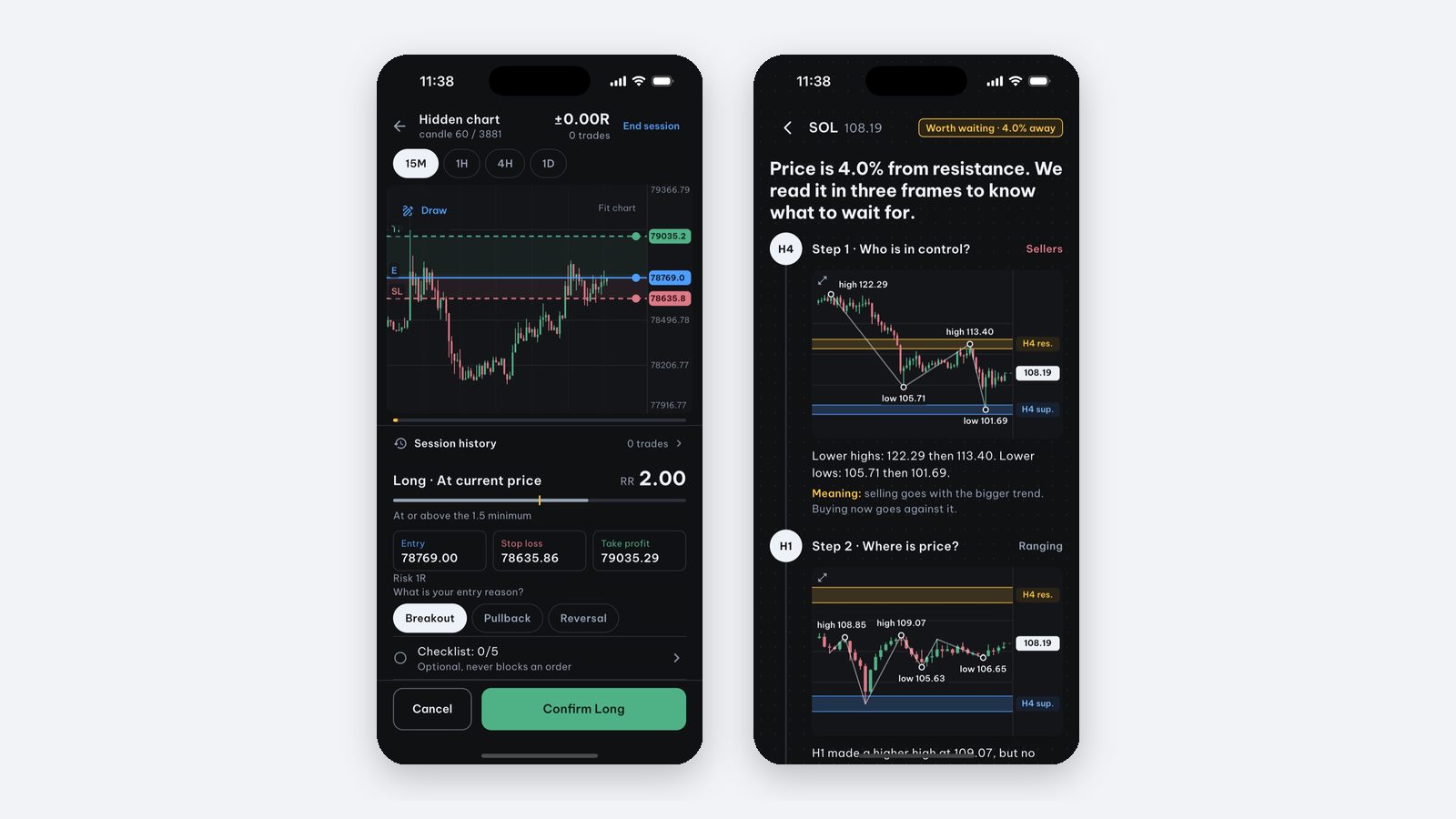
To manually backtest on an iPhone, open a historical chart, hide the future, decide your entry, stop loss and take profit first, then reveal one candle at a time and record the result in R. The most important rule: pick your starting point before you see what happens next, and log every trade, losses included. You don’t need to code; you need an app with a replay mode. Price Action Trading Simulator (iPhone and iPad app) has a manual backtesting mode for BTC, ETH, SOL, gold, EUR/USD and GBP/USD.
What is manual backtesting?
Backtesting means testing a way of entering trades on past data. There are two kinds:
| Manual backtesting | Automated backtesting | |
|---|---|---|
| How | You read the chart and decide each trade | You code a rule and run it in bulk |
| You need | A historical chart with replay | Python or a coding platform, CSV data |
| Main use | Rehearsing chart decisions and recording a rule | Running a defined rule over a larger dataset |
| Limits | Slow, small samples | Doesn’t train chart reading |
If you need to run one strategy over hundreds of symbols and optimize parameters, that is automated backtesting, not this guide.
7 steps to backtest manually
- Write your rules first. When you enter, where the stop loss goes, where the take profit goes.
- Pick a market and timeframe. For example BTC/USDT on H1.
- Pick the starting point before looking. Ideally random with the date hidden, so you don’t know whether that period went up or down.
- Hide the future. Only look at closed candles.
- Write entry, stop loss, take profit and your reason before revealing the next candle.
- Reveal candles one by one until the stop loss or take profit is hit. Record the result in R, using one trade’s planned monetary risk as 1R. Specify fees, fills and what happens if both levels appear within one candle.
- Set review checkpoints before testing. For example, choose 20 practice decisions to check logging consistency. That exercise is not enough by itself to validate an edge or readiness for live trading.
Backtest journal template
| Date/time (UTC) | Market | Timeframe | Entry | Stop loss | Take profit | Reason | Result (R) | Mistake |
|---|---|---|---|---|---|---|---|---|
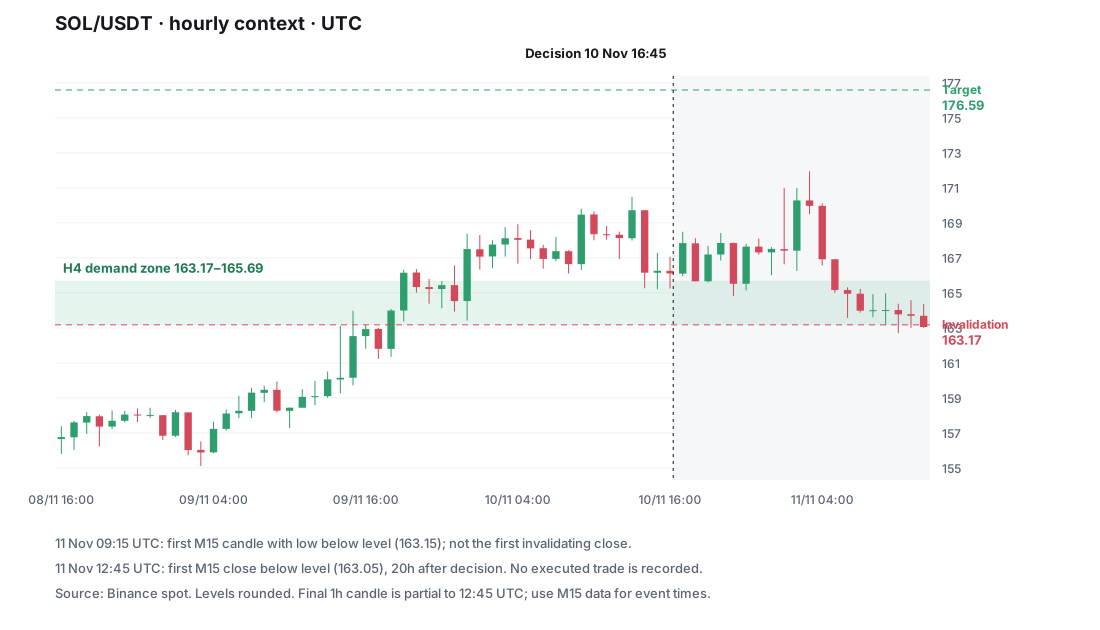
| Nov 10, 2025 16:45 | SOL/USDT | H1 context / M15 observation | 165.6875 (reference) | 163.1725 (reference) | 176.5875 | Stored H4 zone touch | No execution recorded | Not assessed |
That row records a historical observation, not an executed trade. The first M15 low below 163.1725 was in the candle opening November 11 at 09:15 UTC (low 163.15). The first close below it was 163.05 at 12:45 UTC, 20 hours after the decision. If you simulate a fixed stop, specify its assumed fill; a close-based exit is a different rule and does not equal −1R automatically. See the case-data methodology.
Common manual backtesting mistakes
- Choosing the start after seeing what happened. Results look better than reality.
- Skipping losing trades or “fixing” the rules halfway.
- Ignoring fees and slippage. State instrument-specific cost assumptions and test sensitivity. A fixed fee in R does not reproduce spread or slippage fully.
- Drawing conclusions from too few trades.
- Testing only one market phase. A rule that works in an uptrend can lose in a range.
Manual backtesting on iPhone with Price Action Trading Simulator
Price Action Trading Simulator’s backtest mode is built for a phone:
- Reveal historical candles one by one; place entry, stop loss and take profit on the chart.
- Random start with hidden dates; option to hide the symbol name.
- Simulated fee per trade in R, set by you.
- Drawing tools: Fibonacci, supply zone, demand zone.
- Saved sessions so you can review your decisions.
- Data: BTC/USDT, ETH/USDT, SOL/USDT, XAU/USD (GC=F gold futures, not spot gold), EUR/USD, GBP/USD; M15, H1, H4, D1.
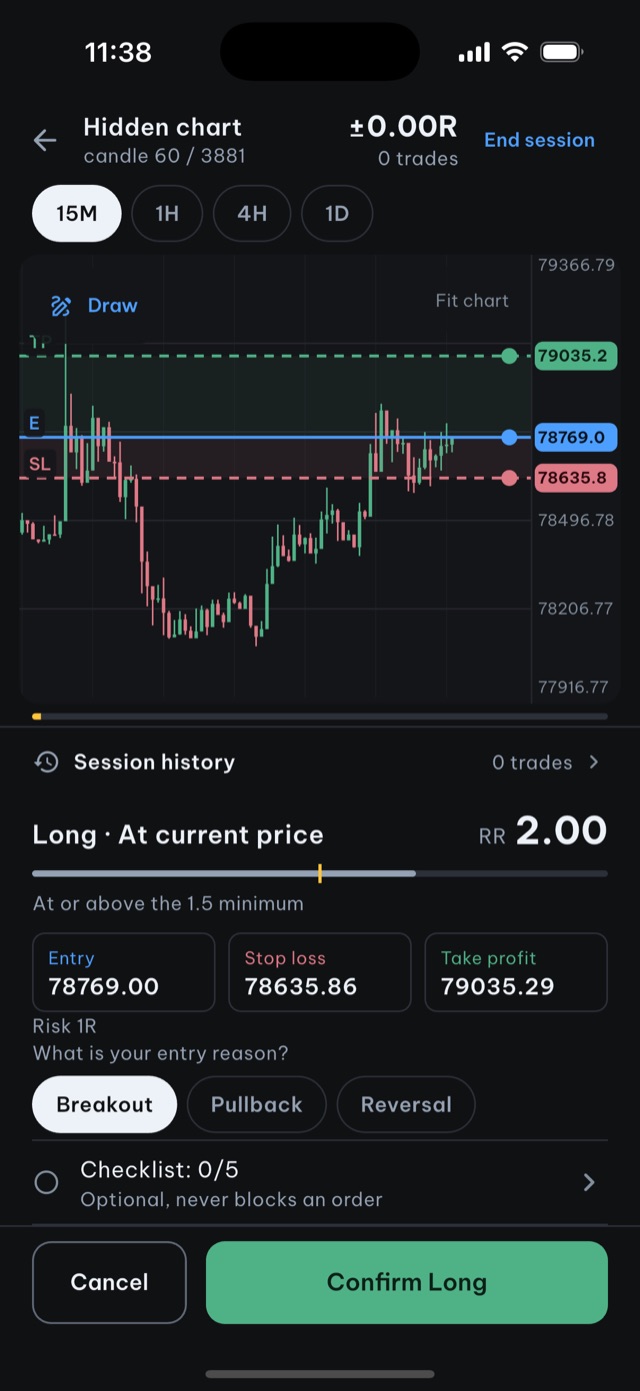
The setup screen is free to browse; starting a backtest session needs Pro. There is no data export yet, and the app does not trade real money.
Source and scope: this is educational material by the Price Action Trading Simulator development team. Price/account examples are hypothetical unless identified as a historical observation; exact fills and omitted costs are assumptions, not guarantees. Our case-data methodology explains the historical sources, selection and limits.
Frequently asked questions
Can I backtest on iPhone without coding?
Yes. Manual backtesting only needs a historical chart that hides the future and reveals one candle at a time. Price Action Trading Simulator has this mode on iPhone and iPad: reveal historical candles one by one and place entry, stop loss and take profit on the chart.
How many trades should a manual backtest have?
There is no universal sufficient count. A short, preselected practice batch can expose logging errors, but evidence for an edge needs uncertainty, market coverage, untouched test data and realistic costs.
Which markets can I backtest in Price Action Trading Simulator?
BTC/USDT, ETH/USDT, SOL/USDT, XAU/USD (GC=F gold futures, not spot gold), EUR/USD and GBP/USD on M15, H1, H4 and D1. Starting a backtest session needs Pro; the setup screen is free to browse.
What is the difference between manual and automated backtesting?
Automated backtesting runs a coded rule over lots of data. Manual backtesting means you read the chart and decide each trade yourself, so it trains chart reading but is slower and uses smaller samples.
Written by the app’s development team. See the data, selection rules and limits of these first-party examples. Sources & method →
Keep reading
-
Why is my backtest profitable but live trading loses?
Audit the backtest-to-live gap: costs, fills, future leakage, rule changes and market exposure. Use a matched decision record before blaming psychology.
-
Does price action work? How to assess a trading rule
Price action names a broad approach, not a proven edge. Learn how to define one rule, avoid hindsight and test net results on untouched data.
-
Trading journal: what to record and how to review mistakes
Record rules and planned risk before entry, then actual fills, costs and compliance. A journal separates execution mistakes from an untested strategy.